> ## Documentation Index
> Fetch the complete documentation index at: https://zenofirm.com/docs/llms.txt
> Use this file to discover all available pages before exploring further.
# Connect companies and check sync status
> Add a QuickBooks Online company, check when its data last synced, and recover a connection.
Use **Clients** to check that the right QuickBooks Online company is connected
and its data is current before asking your assistant to prepare work.
## Connect a company
For your first company, follow [workspace setup](/docs/cloud/getting-started).
Connect your AI client, then choose **Connect to QuickBooks**, authorize the
company in Intuit, and wait for the initial sync on **Clients**.
## Check or restore a connection
Read the connection and last-sync columns on **Clients**:
| What you see | What to do |
| - | - |
| **Importing** | Wait for the first sync to finish. The progress panel shows its status. |
| A connected company with an old sync time | Ask your assistant to refresh the synced copy before relying on it. |
| **Disconnected** | Reconnect through Intuit from the company's row. |
| Data that is wrong after a reset or restored backup | Ask for a rebuild of the synced copy; an ordinary refresh may not be enough. |
Disconnecting stops access and keeps the client on the roster. **Remove** is
a separate action after disconnecting: it removes the roster entry and synced
books while retaining plans, review decisions, runs, and the work log.
Do not remove a company merely to refresh its data.
For more checks, see [a missing or stale company](/docs/cloud/troubleshooting#a-quickbooks-company-is-missing-or-stale).
## Choose the guide for your ledger
| Ledger | Connection runs | Status |
| - | - | - |
| **QuickBooks Online** | In the hosted firm workspace through Intuit OAuth | Available today |
| **QuickBooks Desktop** | Locally on the Windows workstation beside the company file, as [Zeno for QuickBooks Desktop](/docs/quickbooks-desktop) | Available today, under its own one-time licence. A Desktop company file is not a client book in the workspace. A Zeno account can hold the [Desktop connectors add-on](/docs/quickbooks-desktop/bank-feed#a-live-bank-connection), which gives a linked workstation live bank feeds |
## What the QuickBooks Online connection covers
Reading: the chart of accounts, customers, vendors, items, employees,
currencies, tax codes, budgets and transactions, plus QuickBooks' own reports
run live. Writing: the transaction kinds a bookkeeper works in — bills,
checks, card charges and credits, deposits, transfers, journal entries,
invoices, credit memos, sales receipts, refunds, payments received, bill
payments, vendor credits, estimates, purchase orders and time — and the list
names behind them: accounts, customers and jobs, vendors, items, classes,
locations, terms, payment methods, employees, currencies and tax codes.
A plan can propose names and postings together, which is what makes a
migration reviewable: the chart of accounts, the customer list, and the
history that references them arrive as one batch, and a reviewer can strike a
proposed name as readily as a proposed entry. The full list is in
[the tool surface](/docs/cloud/tools).
Beyond posting, the hosted connection also carries QuickBooks-native work that
has no plan around it because it changes no balance: emailing an invoice or
estimate, fetching a rendered PDF, attaching a source document to a
transaction, recurring templates, company preferences, and the entitlements
that decide whether classes, locations, purchase orders, and budgets are
available at all.
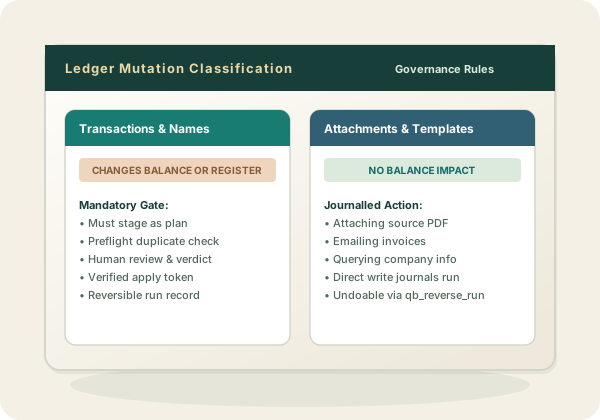 Correcting what is already there is covered too — one document at a time, or
[as a reviewed bulk cleanup](/docs/cloud/imports#when-an-import-went-wrong) that
journals each document's prior state so the run reverses.
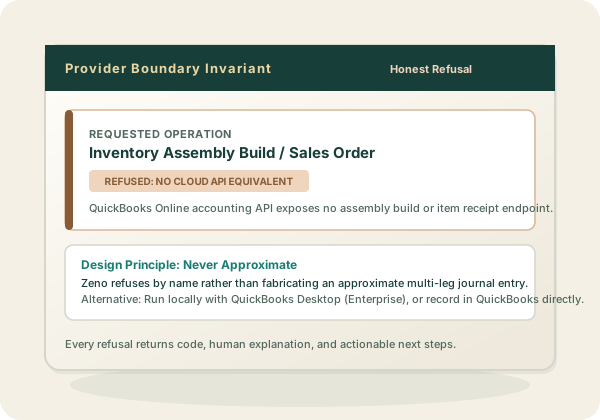
Where QuickBooks Online has no equivalent — inventory adjustments, assemblies,
sales orders, item receipts, price levels, reconciliation — the tool refuses
and names the alternative instead of approximating one. Reconciliation is the
one people ask about most: what the connection can and cannot do with bank
lines is set out in [the queue](/docs/cloud/bank-feeds).
Correcting what is already there is covered too — one document at a time, or
[as a reviewed bulk cleanup](/docs/cloud/imports#when-an-import-went-wrong) that
journals each document's prior state so the run reverses.
Where QuickBooks Online has no equivalent — inventory adjustments, assemblies,
sales orders, item receipts, price levels, reconciliation — the tool refuses
and names the alternative instead of approximating one. Reconciliation is the
one people ask about most: what the connection can and cannot do with bank
lines is set out in [the queue](/docs/cloud/bank-feeds).
 ## One workflow, two places it runs
Hosted connections can reach internet-facing ledger APIs from the firm
workspace. QuickBooks Desktop exposes only a local Windows interface, so its
connection runs on the workstation. In both cases, Zeno prepares a plan,
puts the proposed work through review, applies approved changes through the
ledger's native interface, and records what happened.
## The ledger stays authoritative
Zeno reads, resolves, validates, and writes through the connection. It does
not import the client's books into a second general ledger. Any cached read
model names its source and when it was last synchronized.
## Provider differences stay visible
Transaction kinds, taxes, tracking dimensions, voiding, and deletion do not
mean exactly the same thing across providers. The shared plan contract carries
the plan and its review; each connection owns its provider-specific mapping and
reversal rules.
This documentation is built and hosted on [Mintlify](https://mintlify.com), a developer documentation platform.
## One workflow, two places it runs
Hosted connections can reach internet-facing ledger APIs from the firm
workspace. QuickBooks Desktop exposes only a local Windows interface, so its
connection runs on the workstation. In both cases, Zeno prepares a plan,
puts the proposed work through review, applies approved changes through the
ledger's native interface, and records what happened.
## The ledger stays authoritative
Zeno reads, resolves, validates, and writes through the connection. It does
not import the client's books into a second general ledger. Any cached read
model names its source and when it was last synchronized.
## Provider differences stay visible
Transaction kinds, taxes, tracking dimensions, voiding, and deletion do not
mean exactly the same thing across providers. The shared plan contract carries
the plan and its review; each connection owns its provider-specific mapping and
reversal rules.
This documentation is built and hosted on [Mintlify](https://mintlify.com), a developer documentation platform.